Python:- it is mainly designed for rapid prototyping of complex applications
Python is very unique programming to learn for starters. So without time wasting let’s jump in!
Python advantages over other programming languages : it is easy to learn, read and write, Improved productivity, Interpreted language Dynamically typed, Free and open-source ,Vast library support , Portability
Python versions are: 1.0, 1.5, 1.6, 2.0, 2.1, 2.2, 2.3, 2.4, 2.5, 2.6, 2.7, 3.0, 3.1, 3.2, 3.3, 3.4, 3.5, 3.6, 3.7, 3.8, 3.9
So let’s begin with python IDLE which is used to execute single statement just like python shell
So what is python IDLE the question arises:- IDLE can be used to execute a single statement just like Python Shell and also to create, modify, and execute Python scripts. IDLE provides a fully-featured text editor to create Python script that includes features like syntax highlighting, autocompletion, and smart indent.
IDLE stands for Integrated development and learning environment
Steps to Download and Install Python 3.9 on Windows: https://www.python.org
Step 1: Download Python 3.9. To start, go to python.org/downloads and then click on the button to download the latest version of Python
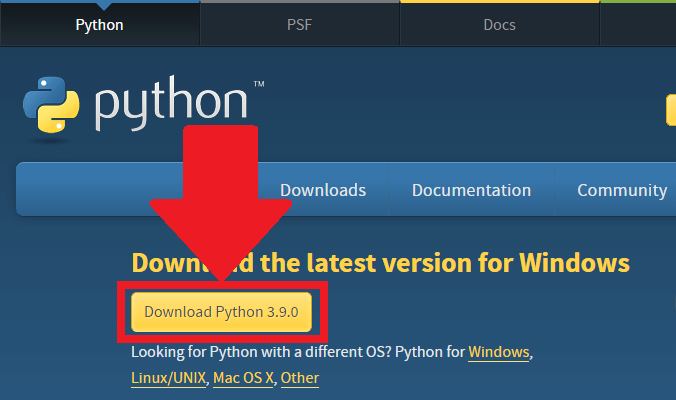
Step 2: Run the .exe file. Next, run the .exe file that you just downloaded
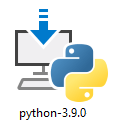
Step 3: Install Python 3.9

Step 4: your Installation will begin now
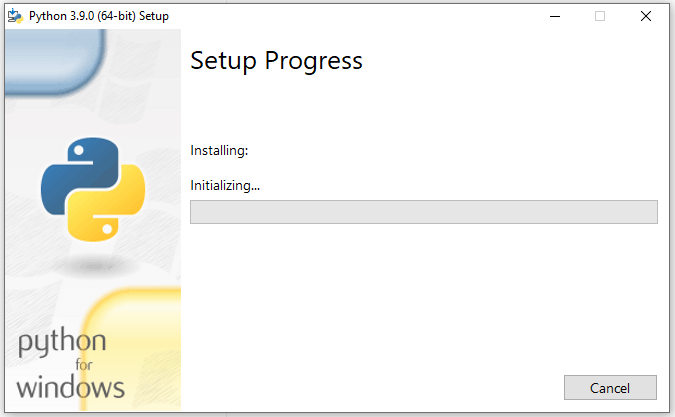
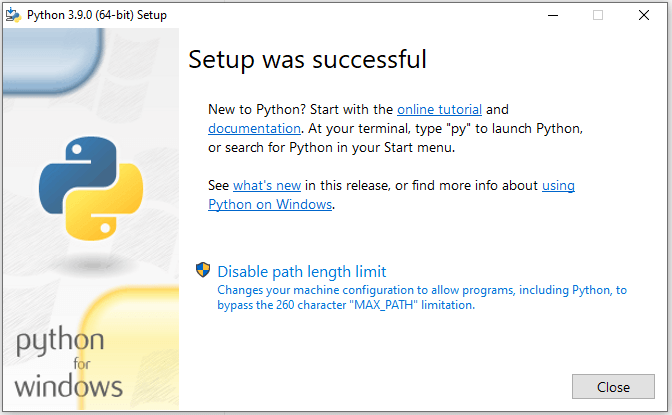
Step 5: After a short period of time your installation will be completed successfully
Let’s see now how to run a simple code in python
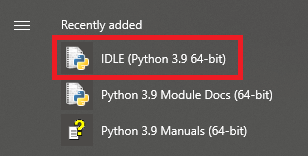
Step 1: A quick way to find your Python IDLE on Windows is by clicking on the Start menu. You should then see the IDLE under “Recently added”
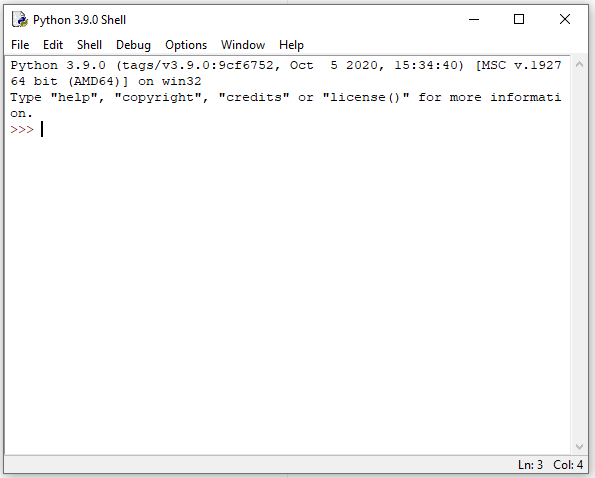
Step 2: Once you click on the Python IDLE, you’ll see the Shell screen:
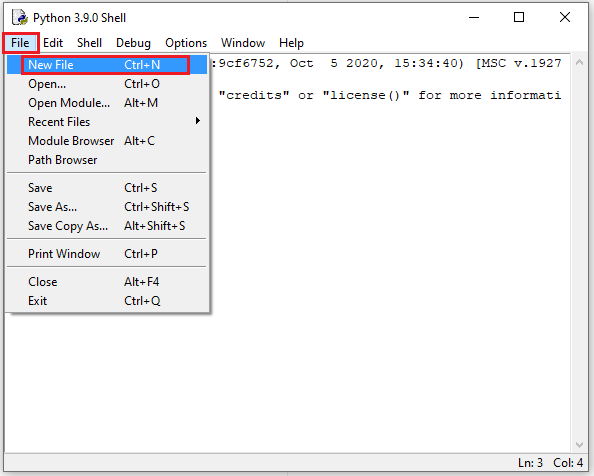
Step 3:Once you click on the Python IDLE, you’ll see the Shell screen (alternatively you can use ctrl+N)
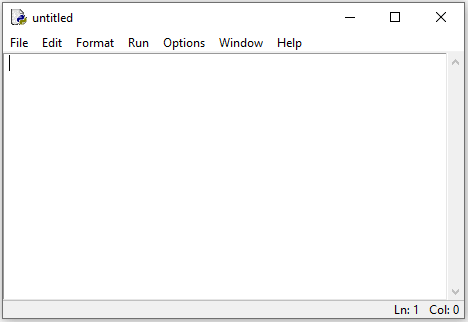
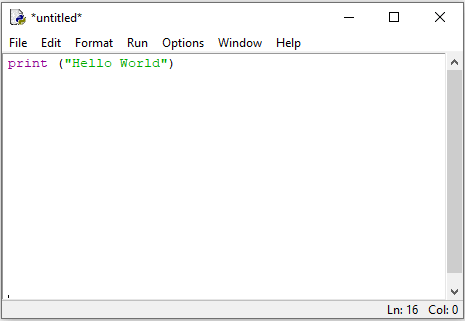
Step 4: You would now see the following “untitled” box, where you can type your Python code:
For example type the command below this command will print the famous expression of “Hello world”
print ("Hello World")
This is how the syntax would look like in the “untitled” box:
Press F5 on your keyboard. You will then get the following message to save your code:
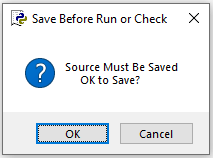
Choose a location where the Python file will be saved on your computer.and give the extension to your file as py
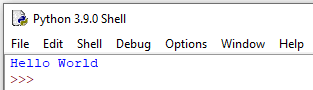
Once you’re done, press Save, and you’ll then see the “Hello World” expression printed on your Python Shell
 Tips and tricks